
HTML Responsive Web Design
Responsive web design is about creating web pages that look good on all devices!
A responsive web design will automatically adjust for different screen sizes and viewports[citation:1].
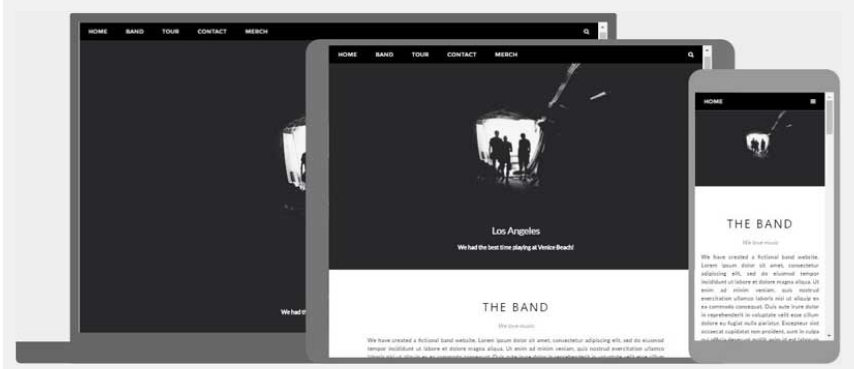
A responsive web design will automatically adjust for different screen sizes and viewports
Responsive Web Design
What is Responsive Web Design?
Responsive Web Design is about using HTML and CSS to automatically resize, hide, shrink, or enlarge, a website, to make it look good on all devices (desktops, tablets, and phones):
Setting The Viewport
To create a responsive website, add the following <meta> tag to all your web pages:
Example
<meta name="viewport" content="width=device-width, initial-scale=1.0">This will set the viewport of your page, which will give the browser instructions on how to control the page's dimensions and scaling[citation:2].
Here is an example of a web page without the viewport meta tag, and the same web page with the viewport meta tag:
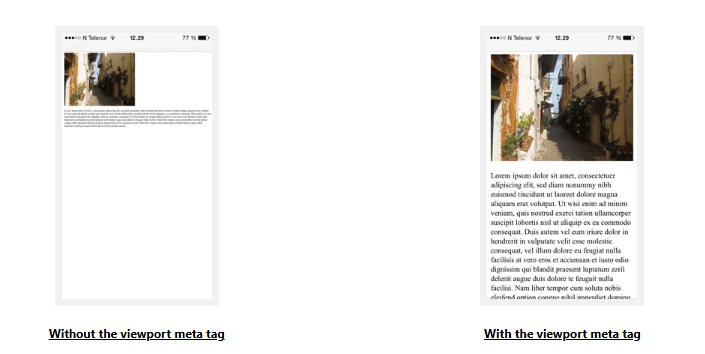
Here is an example of a web page without the viewport meta tag, and the same web page with the viewport meta tag
Tip:
If you are browsing this page on a phone or a tablet, you can click on the two links above to see the difference.
Responsive Images
Responsive images are images that scale nicely to fit any browser size.
Using the width Property
If the CSS width property is set to 100%, the image will be responsive and scale up and down:

If the CSS width property is set to 100%, the image will be responsive and scale up and down
Example
<img src="img_girl.jpg" style="width:100%;">Notice that in the example above, the image can be scaled up to be larger than its original size. A better solution, in many cases, will be to use the max-width property instead.
Using the max-width Property
If the max-width property is set to 100%, the image will scale down if it has to, but never scale up to be larger than its original size:

If the max-width property is set to 100%, the image will scale down if it has to, but never scale up to be larger than its original size
Example
<img src="img_girl.jpg" style="max-width:100%;height:auto;">Show Different Images Depending on Browser Width
The HTML <picture> element allows you to define different images for different browser window sizes.
Resize the browser window to see how the image below changes depending on the width:

Resize the browser window to see how the image below changes depending on the width
Flowers
[Image changes based on screen width]
Small flower image on mobile, large flower image on desktop
Example
<picture>
  <source srcset="img_smallflower.jpg" media="(max-width: 600px)">
  <source srcset="img_flowers.jpg" media="(max-width: 1500px)">
  <source srcset="flowers.jpg">
  <img src="img_smallflower.jpg" alt="Flowers">
</picture>
Responsive Text Size
The text size can be set with a "vw" unit, which means the "viewport width"[citation:1][citation:4].
That way the text size will follow the size of the browser window:
Hello World
Resize the browser window to see how the text size scales.
Example
<h1 style="font-size:10vw">Hello World</h1>Viewport is the browser window size. 1vw = 1% of viewport width. If the viewport is 50cm wide, 1vw is 0.5cm[citation:1].
Understanding Viewport Units:
The "vw" unit is one of several viewport-based units in CSS. Other units include vh (viewport height), vmin (1% of viewport's smaller dimension), and vmax (1% of viewport's larger dimension)[citation:4][citation:8]. These units are essential for creating truly responsive designs.
Media Queries
In addition to resize text and images, it is also common to use media queries in responsive web pages.
With media queries you can define completely different styles for different browser sizes.
Example: resize the browser window to see that the three div elements below will display horizontally on large screens and stack vertically on small screens:
Left Menu
Content for left menu
Main Content
Main content area
Right Content
Right sidebar content
Resize browser to see columns stack on small screens
Example
<style>
.left, .right {
  float: left;
  width: 20%; /* The width is 20%, by default */
}

.main {
  float: left;
  width: 60%; /* The width is 60%, by default */
}

/* Use a media query to add a breakpoint at 800px: */
@media screen and (max-width: 800px) {
  .left, .main, .right {
    width: 100%; /* The width is 100%, when the viewport is 800px or smaller */
  }
}
</style>
Tip:
To learn more about Media Queries and Responsive Web Design, read our RWD Tutorial.
Responsive Web Page - Full Example
A responsive web page should look good on large desktop screens and on small mobile phones.
Ever heard about Jassif Team Spaces?
Here you can create your website from scratch or use a template.
* no credit card required
Responsive Web Design - Frameworks
All popular CSS Frameworks offer responsive design.
They are free, and easy to use.
W3.CSS
W3.CSS is a modern CSS framework with support for desktop, tablet, and mobile design by default.
W3.CSS is smaller and faster than similar CSS frameworks.
W3.CSS is designed to be independent of jQuery or any other JavaScript library.
W3.CSS Demo
Resize the page to see the responsiveness!
London
London is the capital city of England.
It is the most populous city in the United Kingdom, with a metropolitan area of over 13 million inhabitants.
Paris
Paris is the capital of France.
The Paris area is one of the largest population centers in Europe, with more than 12 million inhabitants.
Tokyo
Tokyo is the capital of Japan.
It is the center of the Greater Tokyo Area, and the most populous metropolitan area in the world.
Example
<!DOCTYPE html>
<html>
<head>
<title>W3.CSS</title>
<meta name="viewport" content="width=device-width, initial-scale=1">
<link rel="stylesheet" href="https://www.jassifteam.com/w3css/4/w3.css">
</head>
<body>

<div class="w3-container w3-green">
  <h1>Jassif Team Demo</h1>
  <p>Resize this responsive page!</p>
</div>

<div class="w3-row-padding">
  <div class="w3-third">
    <h2>London</h2>
    <p>London is the capital city of England.</p>
    <p>It is the most populous city in the United Kingdom,
    with a metropolitan area of over 13 million inhabitants.</p>
  </div>

  <div class="w3-third">
    <h2>Paris</h2>
    <p>Paris is the capital of France.</p>
    <p>The Paris area is one of the largest population centers in Europe,
    with more than 12 million inhabitants.</p>
  </div>

  <div class="w3-third">
    <h2>Tokyo</h2>
    <p>Tokyo is the capital of Japan.</p>
    <p>It is the center of the Greater Tokyo Area,
    and the most populous metropolitan area in the world.</p>
  </div>
</div>

</body>
</html>
To learn more about W3.CSS, read our W3.CSS Tutorial.
Bootstrap
Another popular CSS framework is Bootstrap:
Example
<!DOCTYPE html>
<html lang="en">
<head>
<title>Bootstrap 5 Example</title>
<meta charset="utf-8">
<meta name="viewport" content="width=device-width, initial-scale=1">
<link href="https://cdn.jsdelivr.net/npm/bootstrap@5.2.3/dist/css/bootstrap.min.css" rel="stylesheet">
<script src="https://cdn.jsdelivr.net/npm/bootstrap@5.2.3/dist/js/bootstrap.bundle.min.js"></script>
</head>
<body>

<div class="container-fluid p-5 bg-primary text-white text-center">
  <h1>My First Bootstrap Page</h1>
  <p>Resize this responsive page to see the effect!</p>
</div>

<div class="container mt-5">
  <div class="row">
    <div class="col-sm-4">
      <h3>Column 1</h3>
      <p>Lorem ipsum...</p>
    </div>
    <div class="col-sm-4">
      <h3>Column 2</h3>
      <p>Lorem ipsum...</p>
    </div>
    <div class="col-sm-4">
      <h3>Column 3</h3>
      <p>Lorem ipsum...</p>
    </div>
  </div>
</div>
To learn more about Bootstrap, go to our Bootstrap Tutorial.
Exercise
There is a CSS font size unit that sizes text in percent of the viewport, what unit is that?
Learning Check:
The correct answer is vw (viewport width). This unit represents 1% of the viewport's width. Other viewport-based units include vh (viewport height), vmin (1% of viewport's smaller dimension), and vmax (1% of viewport's larger dimension)[citation:4][citation:8]. These units are essential for creating truly responsive typography and layouts.
Viewport Units Demo
Try resizing your browser window to see how different viewport units behave:
(50% of the smaller viewport dimension)
vmin = 1% of viewport's smaller dimension (width or height)
vmax = 1% of viewport's larger dimension[citation:8]